
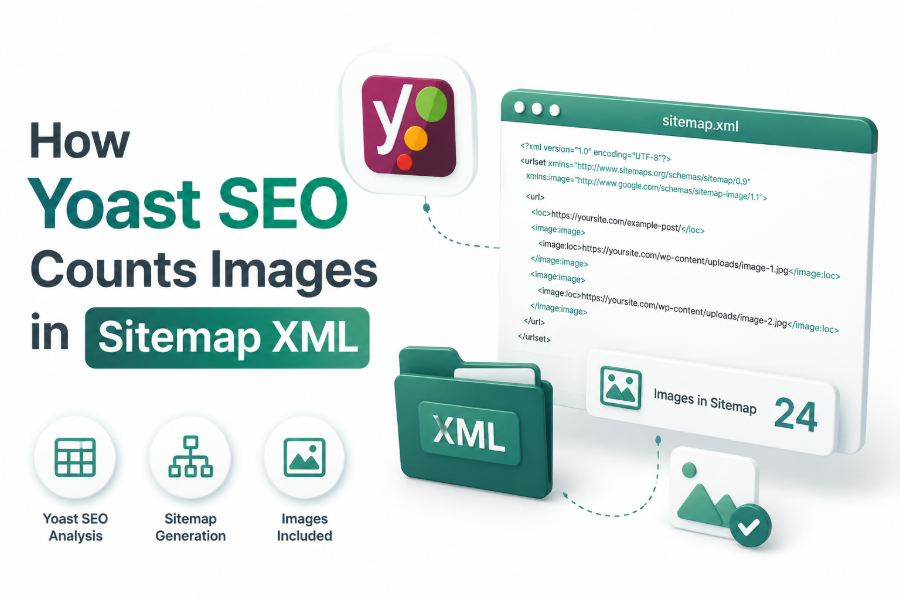
XML sitemaps help search engines discover important website content more efficiently. For websites that publish visual content, image information inside sitemaps can help search engines identify images connected to specific pages. Yoast SEO automatically adds image data to XML sitemaps based on images found within your indexed content.
Many WordPress users check their sitemap and wonder why some images appear while others do not. Yoast SEO does not count every image uploaded to the website. Instead, it identifies images that are connected to sitemap-listed pages and adds those image URLs under the related content entry.
Understanding how Yoast SEO handles image sitemap data helps website owners improve image visibility, maintain better technical SEO, and ensure important images are properly connected with their content.
The Role of Yoast SEO XML Sitemaps
Yoast SEO creates XML sitemaps automatically for WordPress websites. These sitemaps organize website URLs into different categories, including posts, pages, categories, tags, and other content types.
The main purpose of these sitemaps is to help search engines discover and crawl website content. When search engines access a sitemap, they can understand which pages exist and which URLs should be considered for indexing.
Along with page URLs, Yoast SEO can include image information connected to those pages. This allows search engines to understand that specific images are part of specific content.
Yoast SEO sitemap features include:
- Automatic XML sitemap creation
- Organization of indexed content URLs
- Image information connected with pages
- Improved content discovery for search engines
How Yoast SEO Detects Images for Sitemap XML
Yoast SEO does not scan the entire WordPress media library when generating an XML sitemap. Instead, it checks images that are attached to published and indexable content.
When Yoast processes a post or page, it looks for images that are part of that content. If an image is detected and the page is included in the sitemap, Yoast can add the image information inside the XML structure.
For example, if a blog article contains a featured image and several images inside the content, those images may appear under that article URL in the sitemap.
The image detection process usually includes:
- Featured images
- Images inserted inside content
- WordPress editor image blocks
- Images connected to published pages
Featured Images and Their Role in Image Sitemaps
Featured images are one of the easiest images for Yoast SEO to identify. WordPress stores featured image information separately, allowing plugins like Yoast SEO to access and include those images in sitemap data.
When a post has a featured image and the post is indexable, Yoast can add that image URL to the sitemap entry.
Featured images are important because they often represent the main visual element of a page. Search engines may use this information when understanding page content and discovering visual assets.
A featured image should have:
- A relevant file name
- Proper image format
- Optimized file size
- Connection with page content
Images Added Inside WordPress Content
Images placed directly inside blog posts and pages can also be included in Yoast XML sitemaps. When Yoast analyzes the page content, it identifies image URLs included within the content structure.
For example, a 1,500-word article may contain multiple screenshots, illustrations, or supporting graphics. If these images are properly added through WordPress content tools, Yoast can recognize them.
However, images must be part of an indexed page. Simply uploading images without placing them inside content does not guarantee sitemap inclusion.
Content images should follow these practices:
- Add images naturally within articles
- Use relevant image placement
- Optimize image file sizes
- Add descriptive alt text
Why Yoast Does Not Count Every Media Library Image
A common misunderstanding is that every image uploaded to WordPress should appear in the XML sitemap. However, Yoast SEO does not create an independent image sitemap containing all media files.
WordPress websites often contain unused images, duplicate files, old uploads, and temporary graphics. Including every image would create unnecessary sitemap data.
Instead, Yoast focuses on images that have a relationship with indexed website content. This approach keeps sitemap information cleaner and more useful for search engines.
Images may not appear if they are:
- Only stored in the media library
- Not connected to published content
- Located on excluded pages
- Attached to noindex content
The Structure of Image Data in Yoast Sitemap XML
When Yoast includes images in a sitemap, it follows the XML image sitemap format supported by search engines.
A sitemap entry may contain the main page URL along with image information.
Example structure:
<url>
<loc>https://example.com/blog-post/</loc>

<image:image>
<image:loc>
https://example.com/uploads/image.jpg
</image:loc>
</image:image>

</url>
The <loc> section represents the page URL, while <image:loc> represents the image URL connected to that page.
A single page can contain multiple image entries if multiple images are detected.
Factors That Affect Image Counting in Yoast Sitemap
Several technical and content-related factors determine whether Yoast includes an image in the XML sitemap. Website owners should understand these factors when troubleshooting missing images.
The most important factor is whether the image is properly connected to an indexable page. If the page is excluded from search engines, its images may also be excluded.
Other factors include image placement, website settings, and how images are loaded.
Important factors include:
- Page indexability
- Image placement
- WordPress content structure
- Theme compatibility
- Page builder behavior
Why Some Images Are Missing From Yoast Sitemap
Sometimes website owners notice that certain images are not listed in their sitemap. This does not always mean there is an SEO problem. Several technical situations can prevent image detection.
One common reason is that images are added through methods that do not appear in normal page content. Some page builders or custom scripts load images dynamically, making them harder for sitemap tools to identify.
Another reason is that the page containing the image may not be included in the sitemap.
Images may be missing because:
- The page is set to noindex
- The image is loaded through JavaScript
- The image is not inside published content
- The content type is excluded from sitemap settings
The Connection Between Image Optimization and Sitemap Visibility
Image optimization plays an important role in technical SEO. Although sitemap inclusion does not directly depend on image optimization, properly optimized images create better search experiences.
Search engines prefer useful, accessible, and relevant images. A sitemap helps discovery, but the image itself should also provide value to users.
Optimized images improve website performance and user experience while supporting broader SEO efforts.
Image optimization includes:
- Compressing image file size
- Using descriptive file names
- Adding relevant alt attributes
- Choosing suitable image formats
How to Check Images in Yoast XML Sitemap
Website owners can manually check which images Yoast has included in their sitemap. This helps identify whether important images are being detected correctly.
First, open the relevant sitemap URL. Depending on the website structure, it may be a post sitemap, page sitemap, or another content sitemap.
Look for image tags connected to page URLs.
The checking process includes:
- Open the XML sitemap
- Find a page URL
- Search for
<image:image> - Review image URLs listed below it
If important images are missing, review the page content and Yoast settings.
Improving Image Discovery Through Yoast SEO
To improve image discovery, website owners should ensure that important images are properly connected to valuable content. Yoast SEO works best when website structure and content organization are clear.
Adding images randomly across a website will not improve sitemap visibility. Images should support content and provide additional value to visitors.
A strong image SEO approach combines technical optimization, quality content, and proper website structure.
Ways to improve image discovery include:
- Add images to important pages
- Use featured images consistently
- Maintain indexable content
- Optimize website structure
Common Mistakes With Image Sitemaps
Many website owners make mistakes when managing images and XML sitemaps. These mistakes can reduce image discovery opportunities and create unnecessary technical issues.
One common mistake is assuming that uploading an image automatically adds it to the sitemap. Another mistake is adding large numbers of irrelevant images without considering user experience.
A better approach is focusing on meaningful images that support website content.
Avoid these mistakes:
- Uploading unused images
- Ignoring image optimization
- Creating duplicate images
- Using unrelated visuals
Yoast SEO Image Sitemap Best Practices
Following best practices helps ensure that important images are properly connected with your content. A clean website structure allows Yoast SEO to generate better sitemap information.
Images should support the purpose of each page rather than exist only for SEO purposes. Search engines evaluate overall content quality, relevance, and usefulness.
A balanced image strategy improves both technical SEO and visitor experience.
Recommended practices include:
- Use relevant images
- Keep pages indexable
- Optimize image performance
- Maintain organized content
The Importance of Understanding Image Sitemap Behavior
Knowing how Yoast SEO counts images in sitemap XML helps website owners manage their technical SEO more effectively. It prevents confusion when comparing uploaded images with sitemap entries.
A sitemap is not designed to store every website asset. Its purpose is to help search engines discover valuable pages and related content elements.
When images are properly connected to useful content, they have a better chance of being discovered and understood by search engines.
Conclusion
Yoast SEO counts images in sitemap XML by identifying images connected to indexed WordPress content rather than counting every image uploaded to the media library. Featured images, content images, and properly connected visuals can appear inside sitemap entries. Maintaining optimized images, indexable pages, and organized content helps improve image discovery and overall technical SEO performance.
FAQ’S
Does Yoast SEO create a separate image sitemap?
No, Yoast SEO does not usually create a separate image sitemap. Instead, it adds image information inside existing XML sitemap entries for posts, pages, and other indexed content.
Does every WordPress image appear in Yoast sitemap?
No, only images connected to indexable content are considered. Images uploaded to the media library without being used on published pages or posts generally do not appear in Yoast sitemap XML.
How many images can Yoast add for one page?
Yoast can include multiple images from a single page if those images are detected in the content. The number depends on how many relevant images are connected to that specific indexed URL.
Why are some images missing from my sitemap?
Images may be missing because the page is not indexed, the images are loaded dynamically, the content type is excluded, or the images are not properly connected to published content.
Does image sitemap improve Google rankings?
Image sitemap data helps Google discover images more efficiently, but it is not a direct ranking factor. Image quality, relevance, optimization, and overall content performance have a greater impact on visibility.
0 Comments